Pipeline
Concept
The connector crawls items from a source system and feeds these items into a target system through a pipeline. To adjust or process each item before it gets ingested, it is possible to provide custom stages for this pipeline. These stages are software modules provided by us which can be uploaded and configured via the UI.
How to upload and use stages
To upload a stage open the pipeline view:
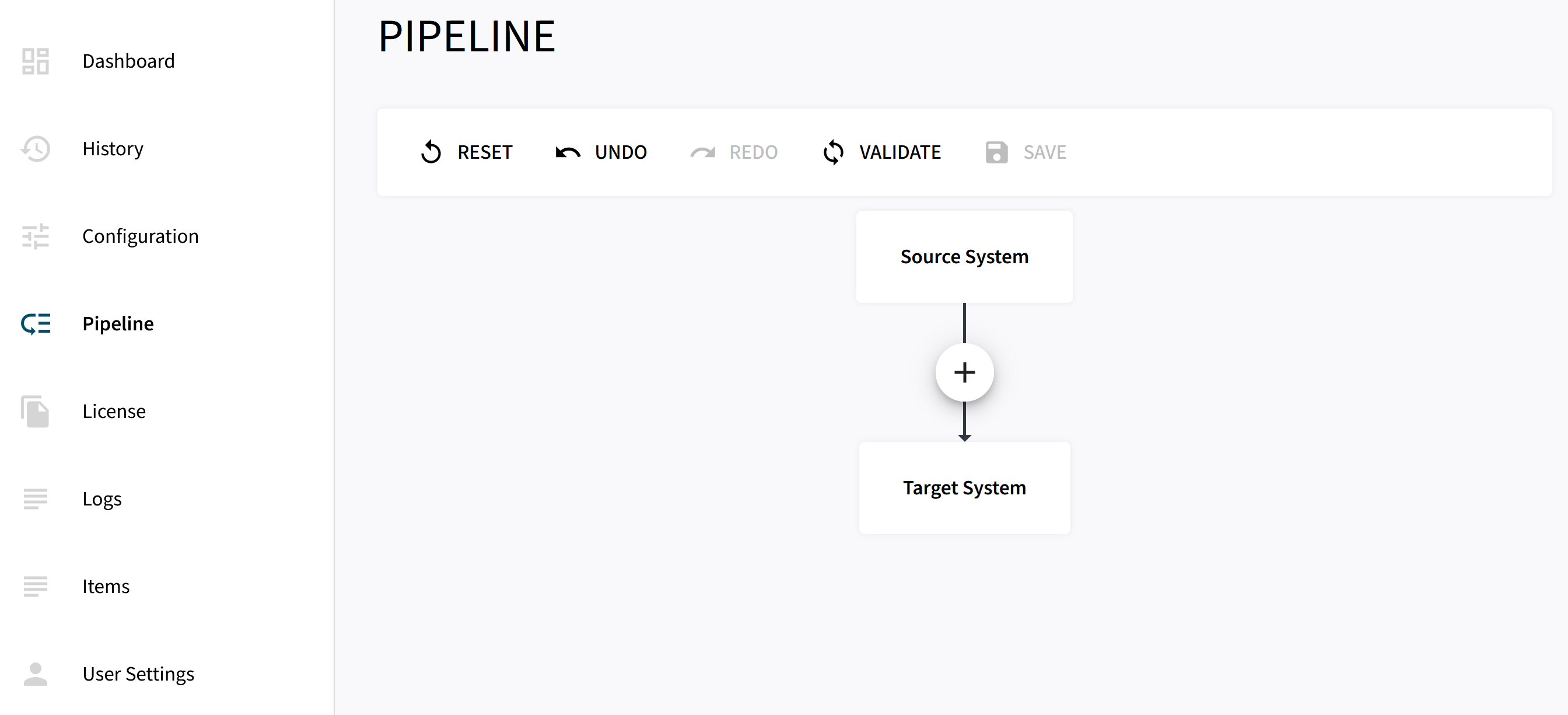
Then click on the + symbol between Source System and Target System and the Select Pipeline Stage view pops up:
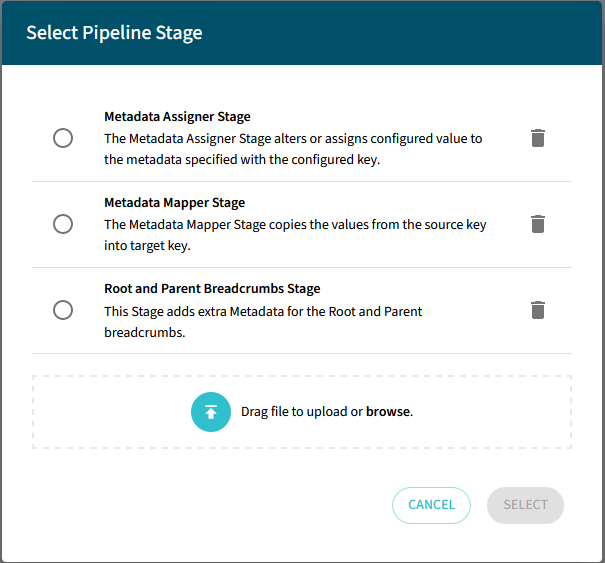
Here you can see stages which are already uploaded to the connector. To upload a new stage, drag and drop the respective software module or click on Drag file to upload or browse to navigate to and select the module.
Once the module is uploaded it is listed in the available stages where it can be selected. After selecting the stage it is shown as step in the pipeline where it can be configured:
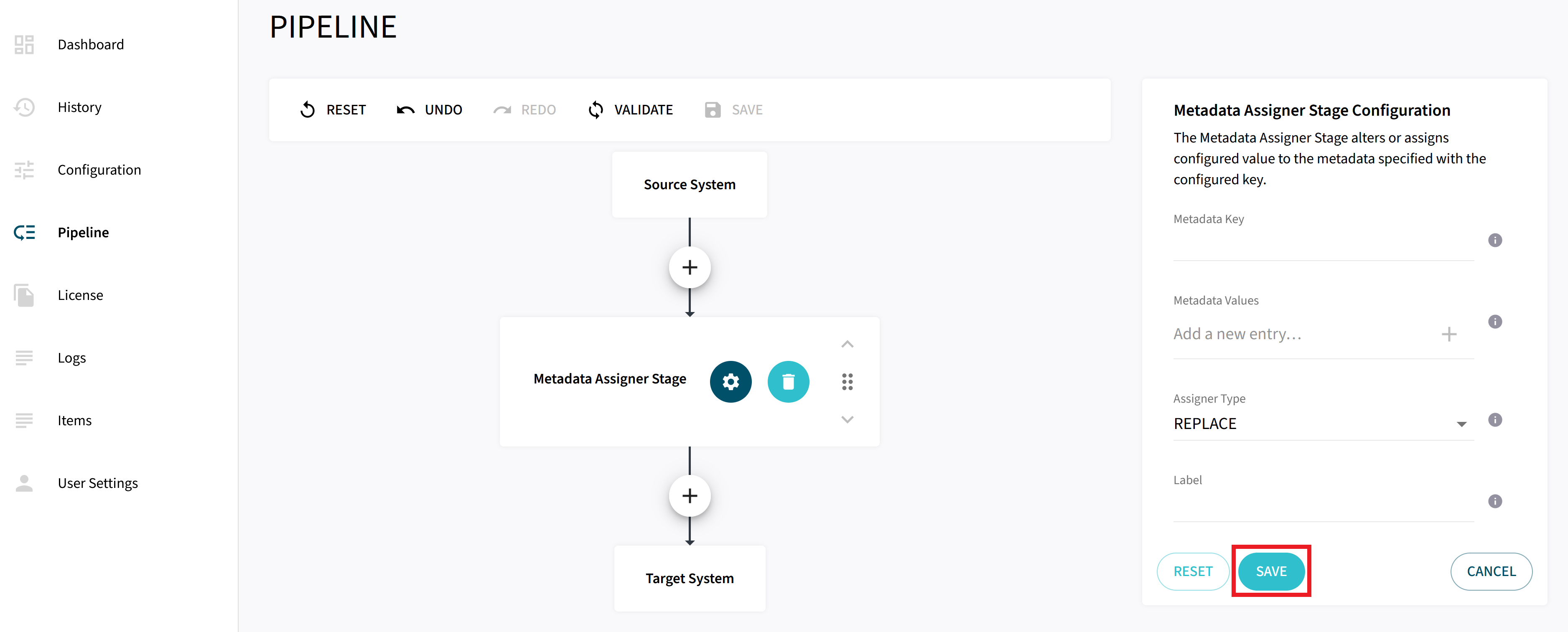
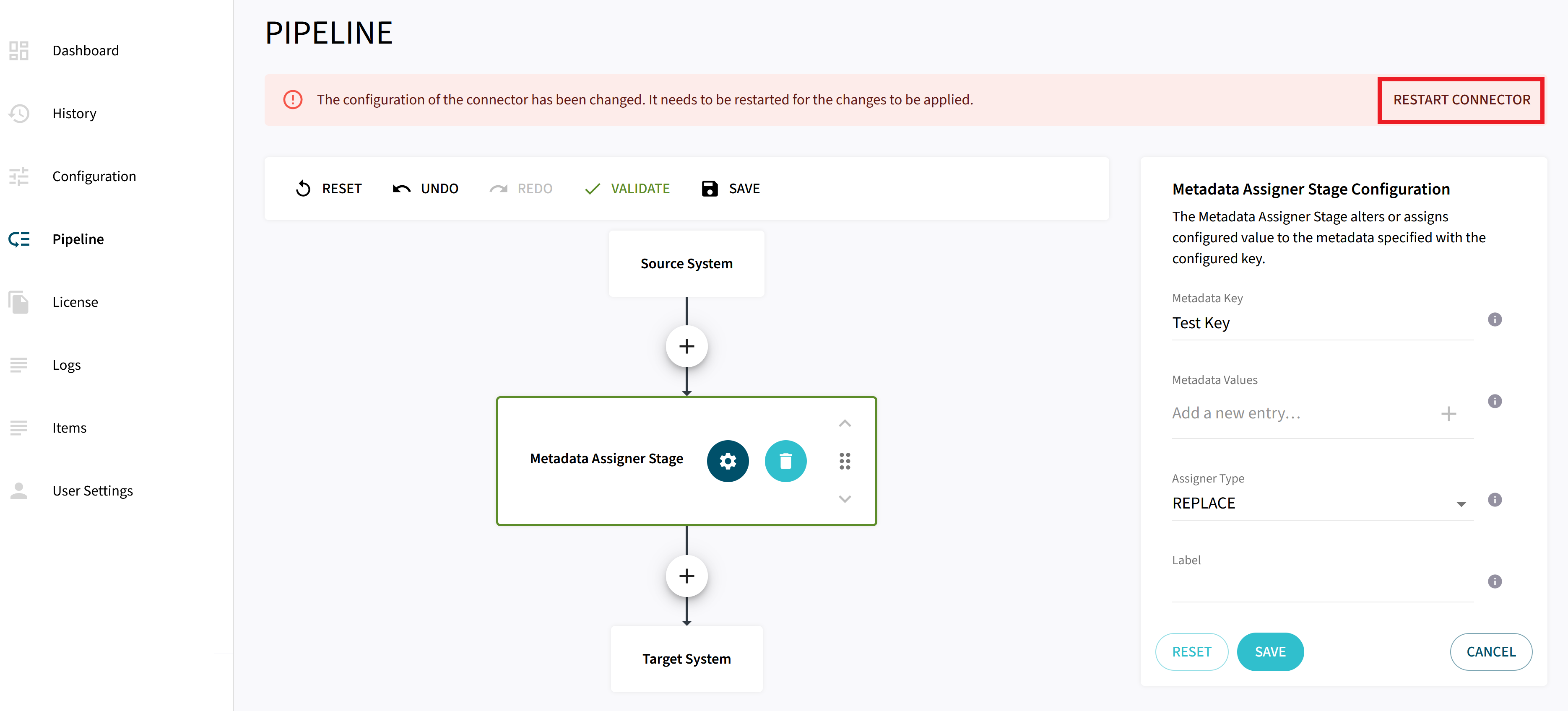
After completing the configuration of this single stage, it has to be saved by pressing SAVE. It is possible to set up and configure multiple custom stages in any order. To apply stages this setup of stages has to be validated and then saved by pressing the respective buttons. After saving the setup, the connector has to be restarted so that the pipeline stages are applied in the next traversals. This can be done by pressing RESTART CONNECTOR on the popped up message:
Default packaged stages
The connector is packaged with pipeline stages which are delivered but not applied by default:
| Stage | Description |
|---|---|
Metadata Assigner Stage |
The Metadata Assigner Stage alters or assigns configured values to the metadata specified with the configured key. |
Metadata Mapper Stage |
The Metadata Mapper Stage copies the values from the source key into target key. |
Root and Parent Breadcrumbs Stage |
This stage adds extra Metadata for the Root and Parent breadcrumbs. |