Lucidworks Fusion 5
Quick Start
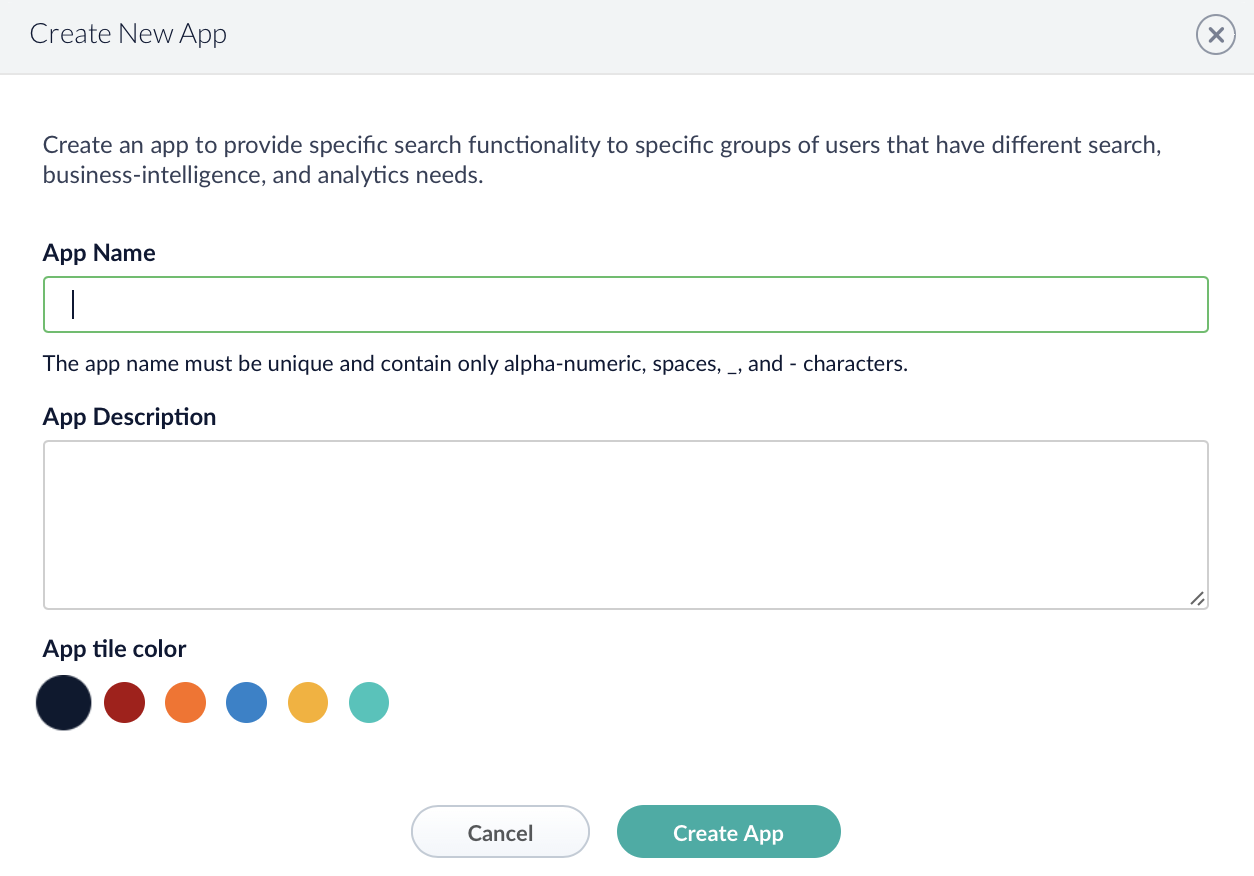
Create new App
You can skip this step if there is already an app you want to use the connector for.
Navigate to App Launcher to create a new app.
Create Technical Account
It is recommended to create a dedicated technical user account for the connector restricted to the intended API permissions.
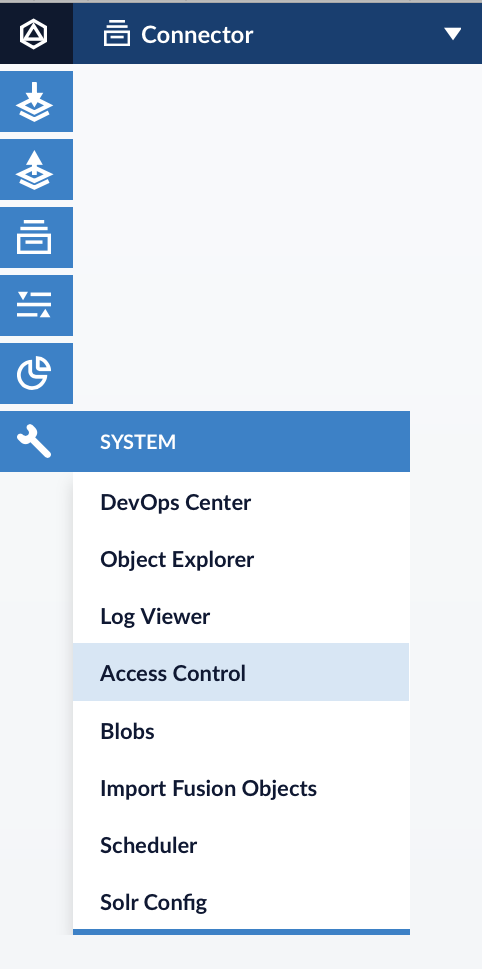
In order to create a new user navigate to System → Access Control → Users.
The connector requires at least the API permission HEAD,POST,GET,DELETE,PUT:/index-pipelines/** to consume the Indexing Pipeline API.
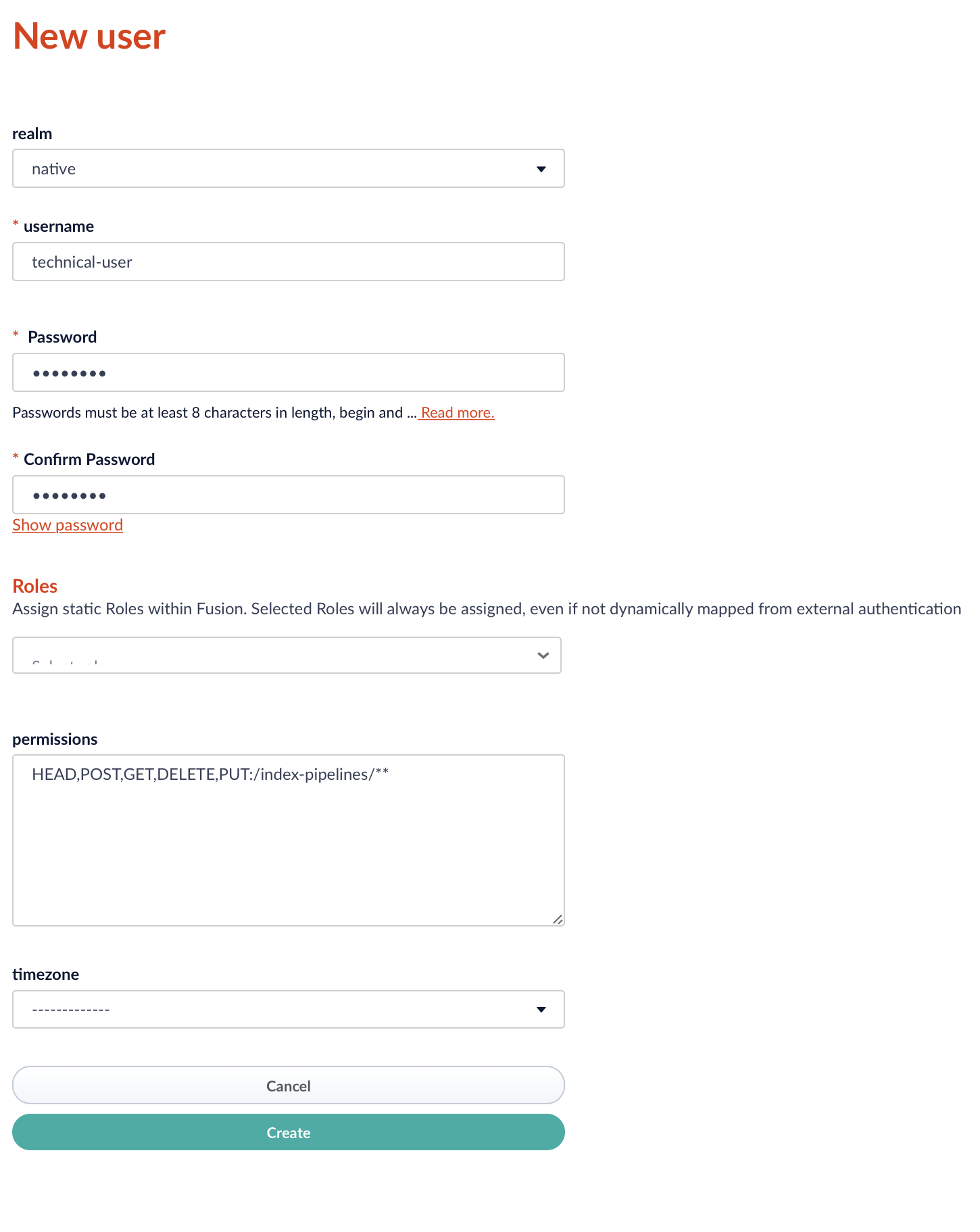
The created technical account credentials has to be specified in the connector configuration. Note, that the connector supports only the authentication via native realm.
Make sure to select the native realm when creating the technical account.
|
Configure Index Pipeline
The connector processes binary content as Base64 encoded text into target Solr collection. Hence, it is recommended to include the Tika parser into your indexing pipeline.
Create Content Collection
If you use an existing collection within your app to index your documents, you can skip this step.
To create a new collection navigate to Indexing → Collection Manager within your app.
Create Tika Parser
As the connector does not apply any advanced binary content processing before indexing the documents, it is recommended to
use the Apache Tika Parser provided by Fusion.
Navigate to Indexing → Parsers → Add+ to add a new parser to your app. Remove all default parsers and add the Tika Parser to the list of parsers.
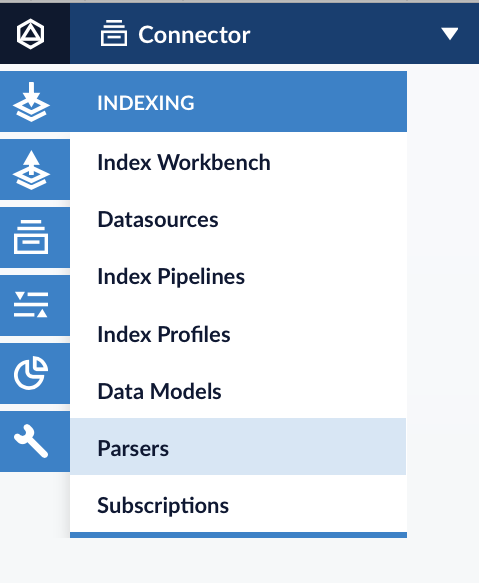
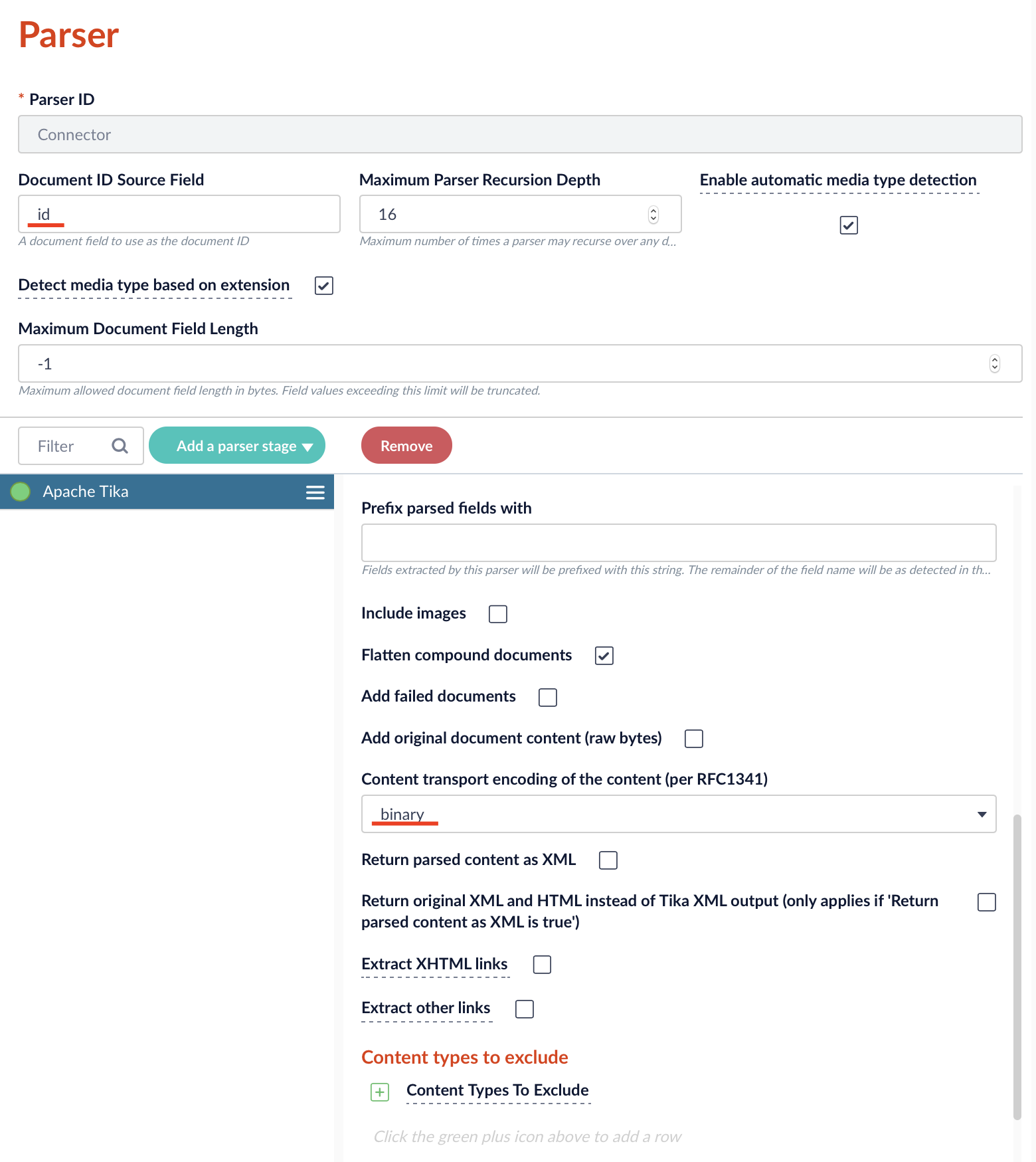
Set the Document ID Source Field to id and set the content encoding to binary.
Include the Parser to Index Pipeline
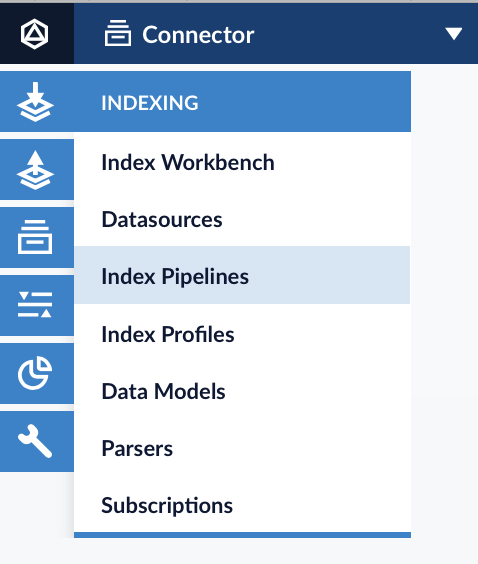
Navigate to Indexing → Index Pipelines.
Include the Field Parser Stage to your pipeline. Set the Parser ID to the ID of the parser created in previous step.
Make sure to set the Source Field to raw_content and Source Field Encoding the base64.
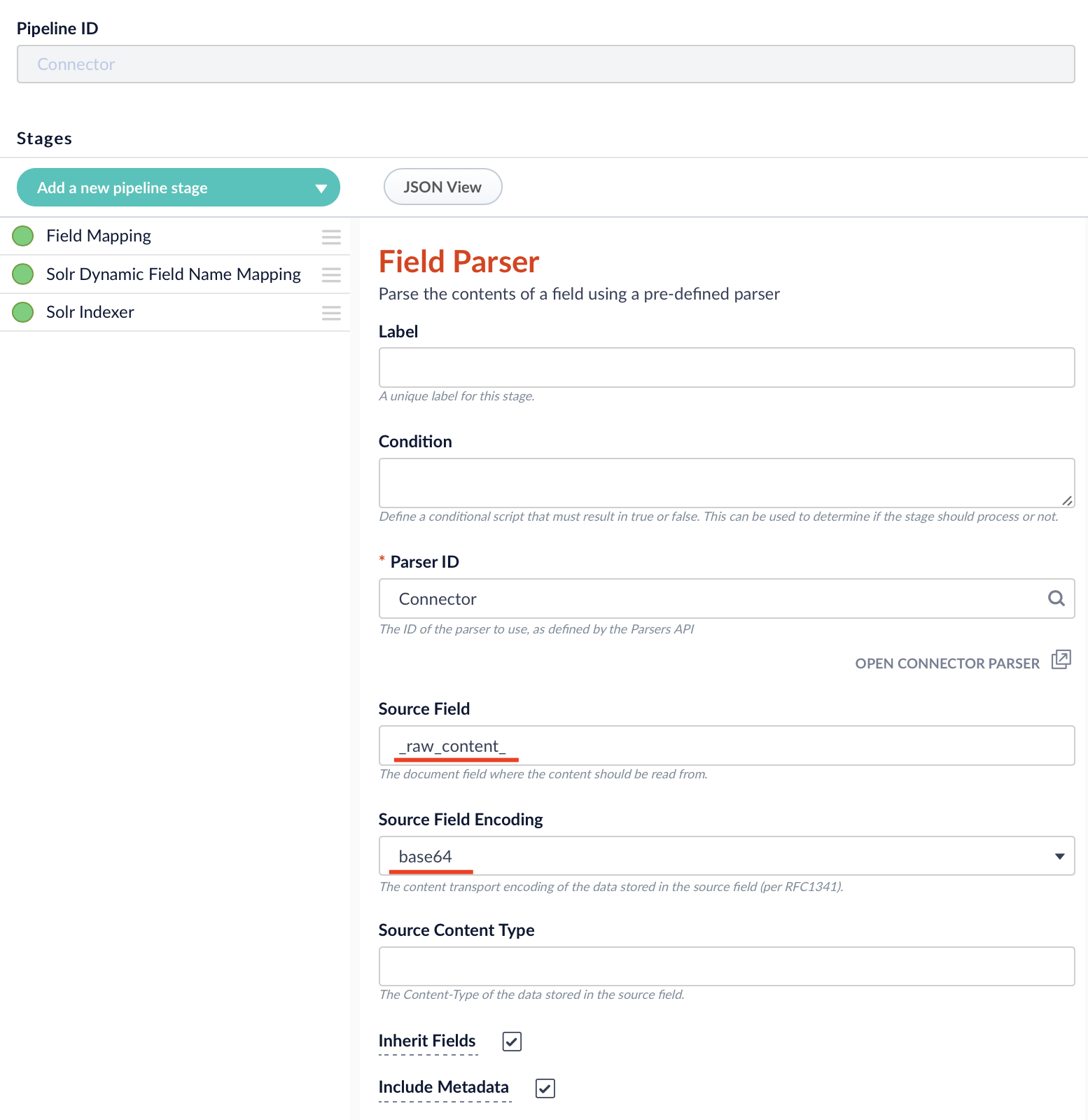
The configured Index Pipeline has to be specified in the connector configuration under Basic → Lucidworks Fusion 5 → Indexing Settings → Indexing Pipeline.
|