Connector Quick Start

Start Connector

Unpack the distribution and run the start script located in the installation bin directory.

LINUX

./connector

WINDOWS

./connector.bat

Login to Connector

Once the Connector has started, navigate to the Admin UI and login with the default username and password, admin/admin:

Configure Connector

Follow the description and instruction in the Basic Configuration Menu to configure the mandatory settings.

OpenText Documentum Configuration

Configure the URL of your Documentum instance. This value is not used to establish the connection to your Documentum server but for constructing the Click URL of crawled items.
Documentum Configuration
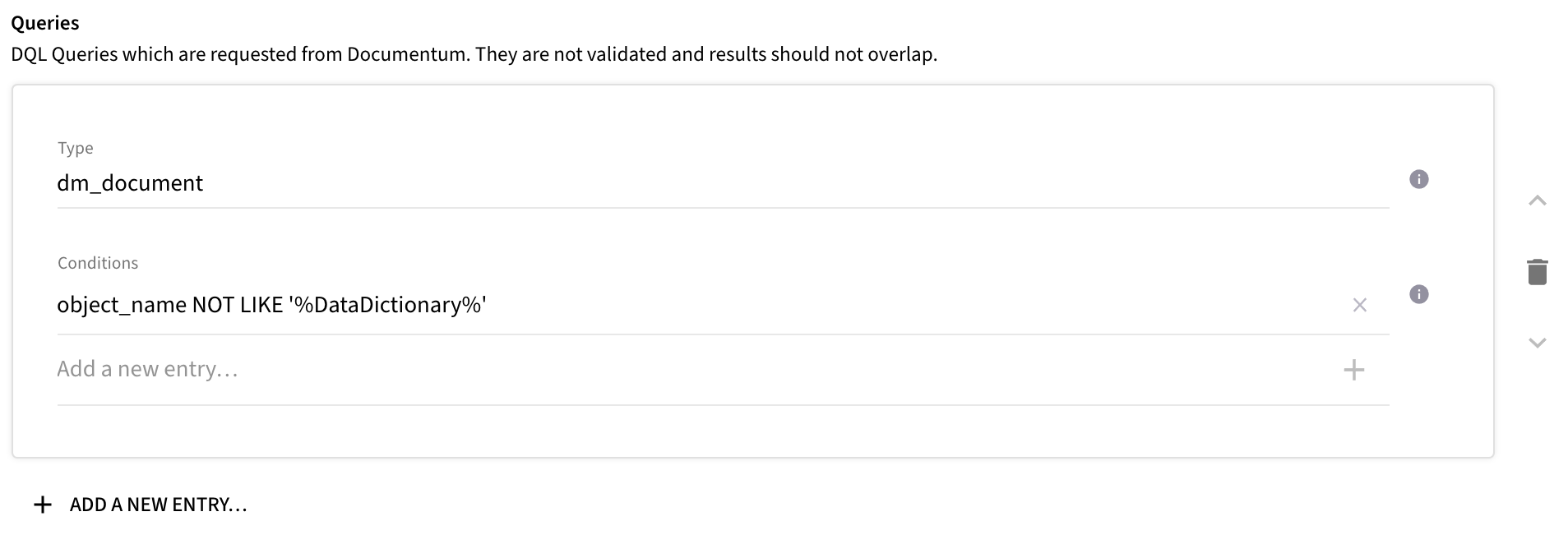
Configure the list of DQL queries to specify the document type and condition of items which should be crawled by the connector.
Documentum Queries
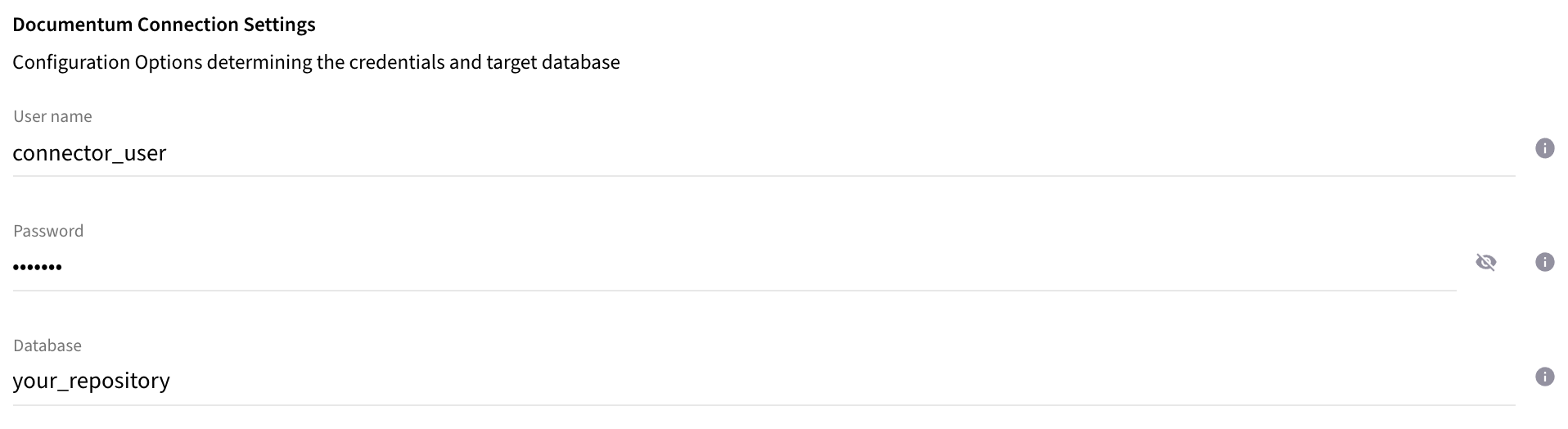
Configure the Database where the items should be queried from. Specify the credentials for the query user. Note, that this user requires read access to all items which should be crawled by the connector
Documentum Connections
Upload the dfc.properties file. Skip the dfc.keystore file upload unless you are using a custom keystore.
Documentum Files

Lucidworks Fusion 5 Configuration

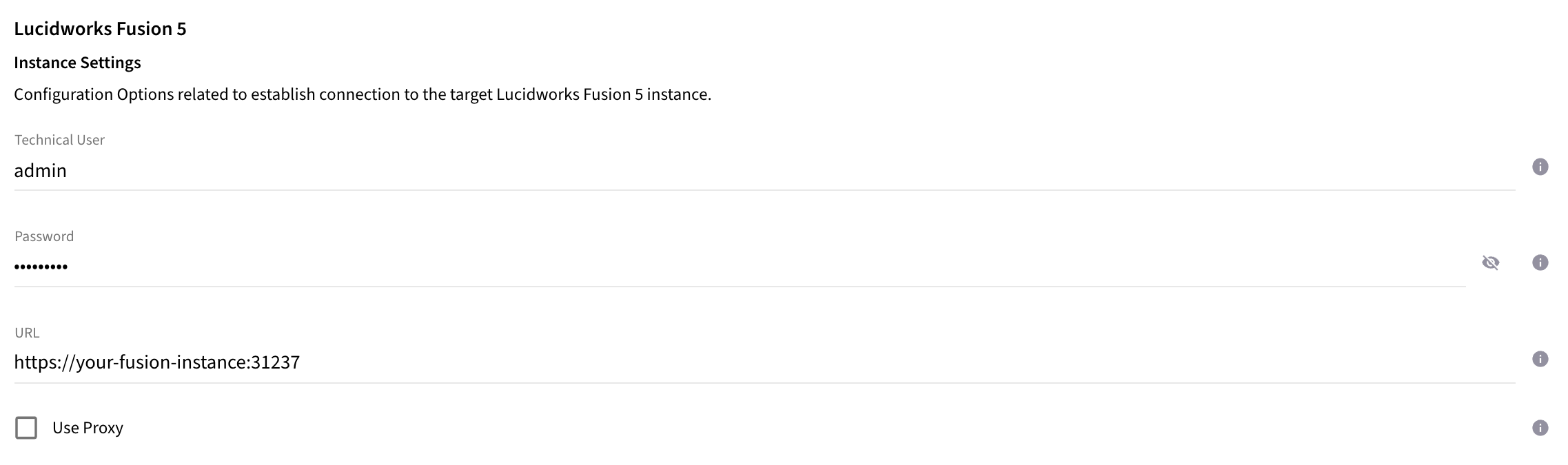
Configure the URL of your Fusion instance and the credentials for the technical account created at step Lucidworks Fusion 5 Quick Start - Create Technical Account.
basic config fusion instance
Configure the name of the Index Pipeline and Solr Collection configured at step Lucidworks Fusion 5 Quick Start - Configure Index Pipeline.
basic config fusion indexing
Configure the name of the Principal Index Pipeline and Solr Sidecar Collection configured at step Lucidworks Fusion 5 Quick Start - Configure Principal Index Pipeline.
basic config fusion principal indexing
Configure the Data Source ID of your choice which allows you to identify the items from same source system.
basic config fusion datasource

Upload License

  • Contact Raytion and obtain a license for your connector

  • Login to the Admin UI

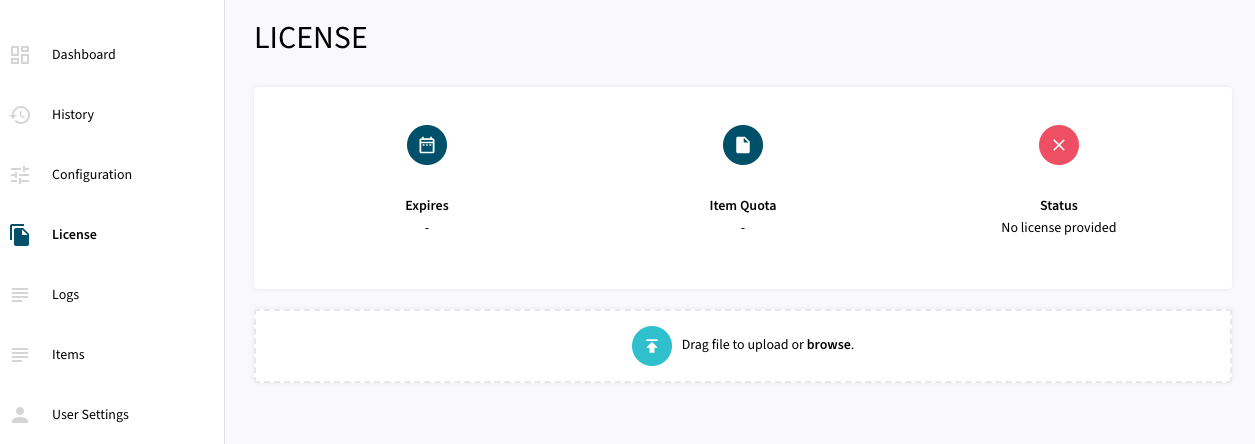
  • Select License in the menu:

uploadlicense 1
  • Upload the license file by browsing for the file or simply dragging a dropping the license onto the license page

  • The Status of the license will be displayed as valid, and the expiration and item quota will also be displayed:
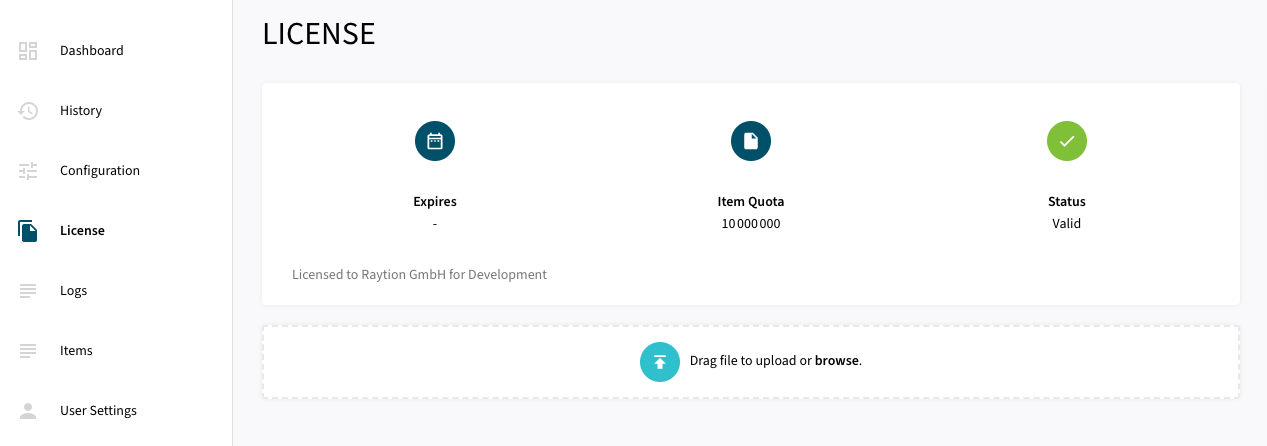
uploadlicense 2

Synchronizing Content and Principal Information

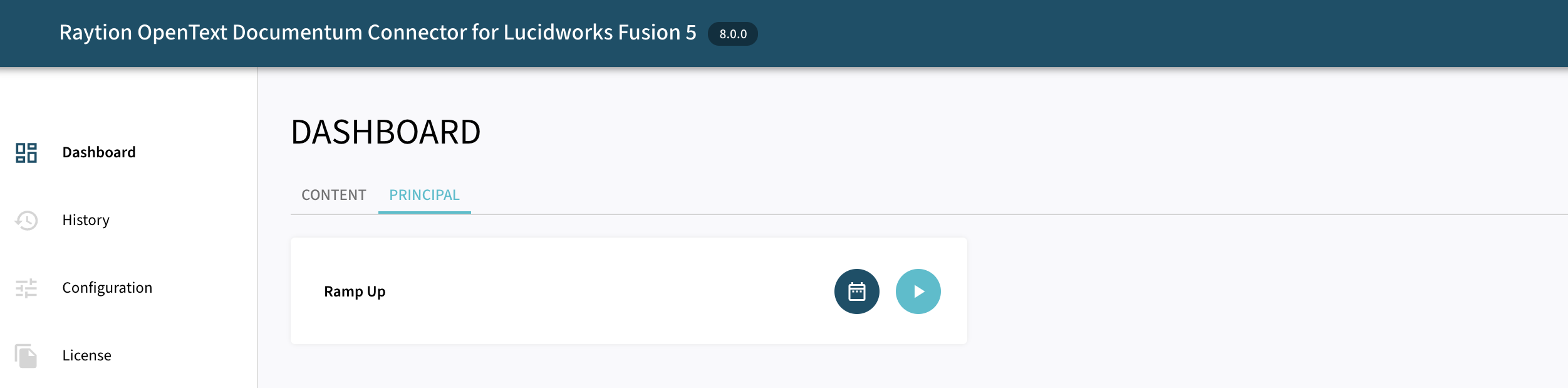
Once, the connector is configured and license uploaded, you can start synchronize content and principal information using the traversal feature in the dashboard.
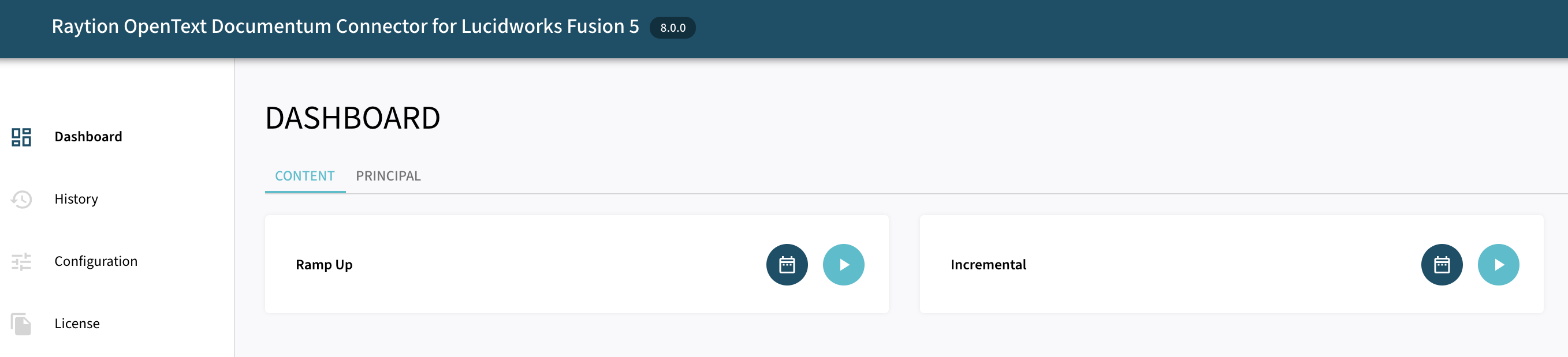
Content Traversal

  • Ramp Up will process all items to Lucidworks Fusion.

  • Incremental will process only changed items since last traversal run.

dashboard content

Principal Traversal

  • Ramp Up will process all security information to Lucidworks Fusion.

dashboard principal